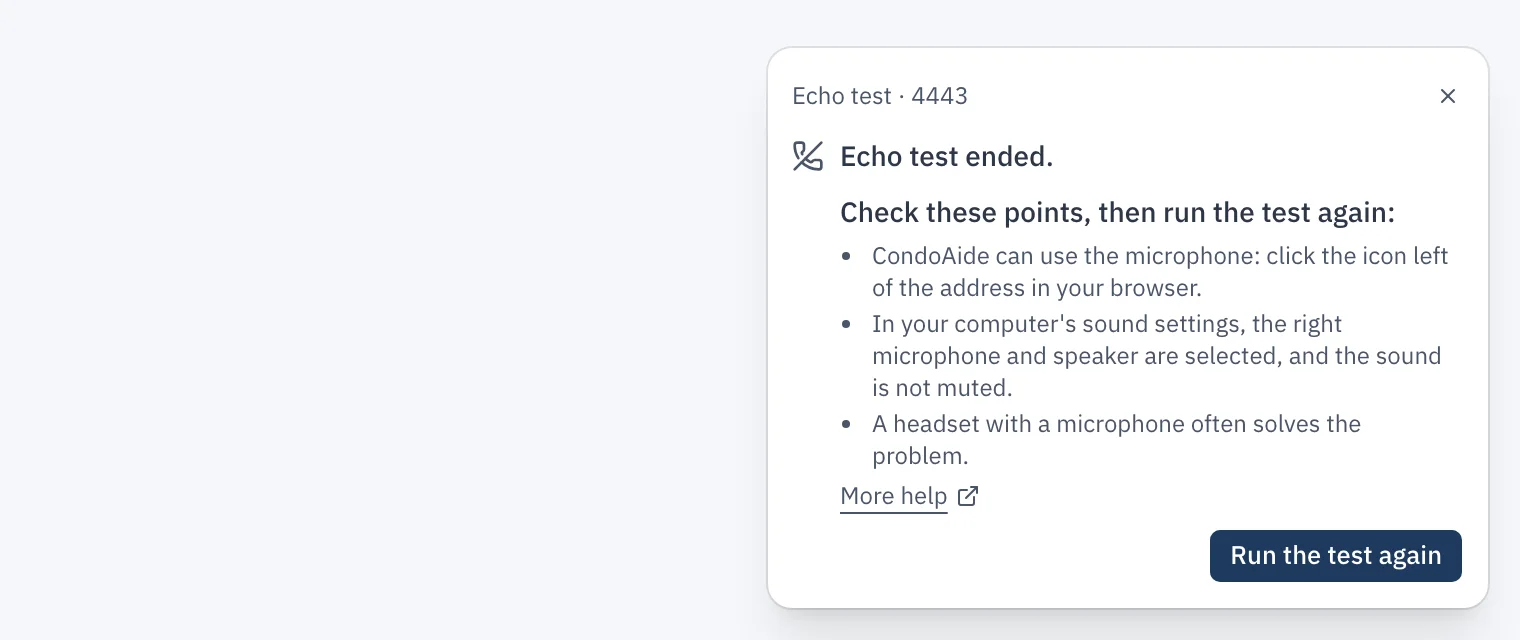
The « 4443 » echo test plays your own voice back to you. It checks, before a real call, that your microphone and sound work. At the end of the test, the call card asks « Did you hear your own voice? ». If you answered « No », follow the section for your test, then run it again with « Run the test again ».
These checks are about your device, your browser and your network. CondoAide cannot make them for you, but a problem that remains after all these steps is worth reporting to support.
The test in the browser
The test runs in the CondoAide tab, with your computer's microphone and speaker. Check in this order: microphone access, the selected microphone and output, then the headset.
1. Allow the microphone for CondoAide
On the first test, the browser asks whether CondoAide may use your microphone. If you declined, or the question never appeared, CondoAide hears nothing.
- Chrome: click the icon left of the address, then turn on Microphone. You can also open Settings → Privacy and security → Site settings → Microphone and check that condoaide.ca is in the allowed list.
- Edge: click the icon left of the address, then under Permissions for this site choose Allow for Microphone. The same setting is under Settings → Cookies and site permissions → Microphone.
- Safari (Mac): open Safari → Settings, Websites tab, then Microphone in the list on the left, and choose Allow for condoaide.ca.
- Firefox: click the crossed-out microphone icon left of the address and remove the block. The setting is also under Settings → Privacy & Security → Permissions → Microphone → Settings.
Then reload the CondoAide page and run the test again.
The computer itself must also let the browser use the microphone:
- Mac: System Settings → Privacy & Security → Microphone, and turn on your browser. You may need to quit and reopen the browser after this change.
- Windows: Settings → Privacy & security → Microphone, and turn on microphone access for apps and desktop apps.
2. Pick the right microphone and output
A computer often has several microphones and outputs: its own, a monitor's, a webcam's or a headset's. The test uses the ones the computer chose by default, which are not always the ones in front of you.
- Mac: System Settings → Sound. Under Output, pick the speaker or headset you listen to; under Input, pick the microphone you speak into, and speak: the Input level meter should move.
- Windows: Settings → System → Sound. Under Output, pick the device you listen to; under Input, pick your microphone, and check that the meter moves when you speak.
Also check that the sound is not muted and the volume is loud enough, on the computer and on the headset. In Chrome, the Site settings → Microphone page lets you pick a specific microphone for websites, at the top of the page.
3. Try with a headset, or without
A headset with a microphone often solves the problem: it keeps the speaker's sound away from the microphone.
Bluetooth headsets and earbuds switch to « call mode » when the microphone opens: the sound quality drops, and some computers then keep the output on another device. Pick the same headset for input and output, or try once without the Bluetooth headset, with the computer's own microphone and speakers.
The test on the cell
The line rings your cell; after « 1 », you hear your voice in the cell. If you did not hear it:
- Microphone and volume. During the test, check that the microphone is not muted on the call screen, and turn the volume up with the side buttons during the call.
- No speakerphone. The cell's speakerphone often cuts sound coming back to avoid echo: it can erase your own voice. Run the test with the cell at your ear.
- No wireless earbuds. Bluetooth earbuds or a connected car can take the call without you noticing. Disconnect them, or check on the call screen which device is in use.
- Signal. A weak signal cuts the voice. Run the test again somewhere else, near a window or outdoors.
- Wi-Fi calling. If your cell makes its calls over Wi-Fi, a weak Wi-Fi cuts the voice; try turning Wi-Fi calling off for the test. Conversely, where the cell signal is poor, turning it on can help.
If your ordinary calls, made without the syndicate line, have the same problem, it comes from the cell or the network: your cell carrier is best placed to help.
If nothing works
Write to CondoAide support from CondoAide support at the bottom of the menu. Say which test (browser or cell), when you ran it, your browser or cell model, and the steps you already tried.